

Seeing the screen and pointing
Last updated October 13, 2026
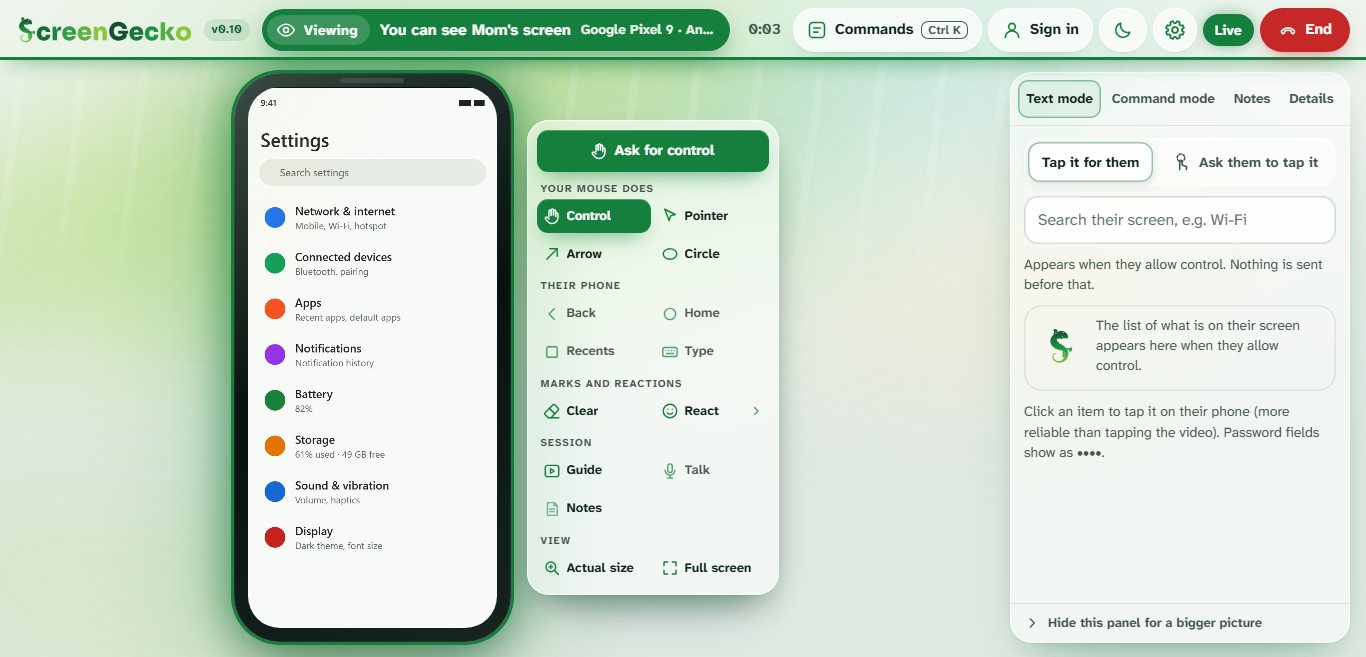
Once they share, you see their screen live. You can point and draw so they know where to tap, even before they allow control.
What the colors mean
The status at the top changes color for both of you, so everyone knows what is shared: Viewing (they share, you look), Control on (you can tap and type), Hidden (their screen is covered), Camera, Your turn, and Ended.
Point and draw
- In the dock, under Your mouse does, choose Pointer, Arrow or Circle.
- Move or drag over their screen. They see your pointer or drawing on their device.
- Choose Clear to remove your marks.
On Android, the pointer can also show over other apps: the person turns on Pointer over other apps when ScreenGecko asks.
React
Choose React and pick Nice, Clap, Done or Wave to cheer them on. They can answer with Thank you, Wait or I'm lost.
Their phone's buttons
Under Their phone, Back, Home, Recents and Type work once they allow control on Android. See Allow control on Android.
Ending the session
- Helper: choose End at the top. You get a short summary you can copy or download, and Help someone again.
- Person being helped: tap Stop sharing. It works at any time, even while control is on.
Nothing is recorded. ScreenGecko keeps only a short record of when the session started and ended.
Still need help?
Email support@screengecko.app. Tell us which device you use and what happened. We never need your password or a code, and we will never ask for them.