

Guides and Your turn
Last updated October 13, 2026
Teach, don't just do it for them. With Your turn, they do the tapping while you guide. With a guide, they keep the steps for next time. Both work on Android phones.
Your turn: they tap, you guide
Control must be on for Your turn (see Allow control), but you do not tap for them: ScreenGecko puts a green ring around the right thing, and they tap it themselves.
- Helper, Text mode: in the side panel, choose Ask them to tap it, search their screen (for example "Wi-Fi"), and click the item.
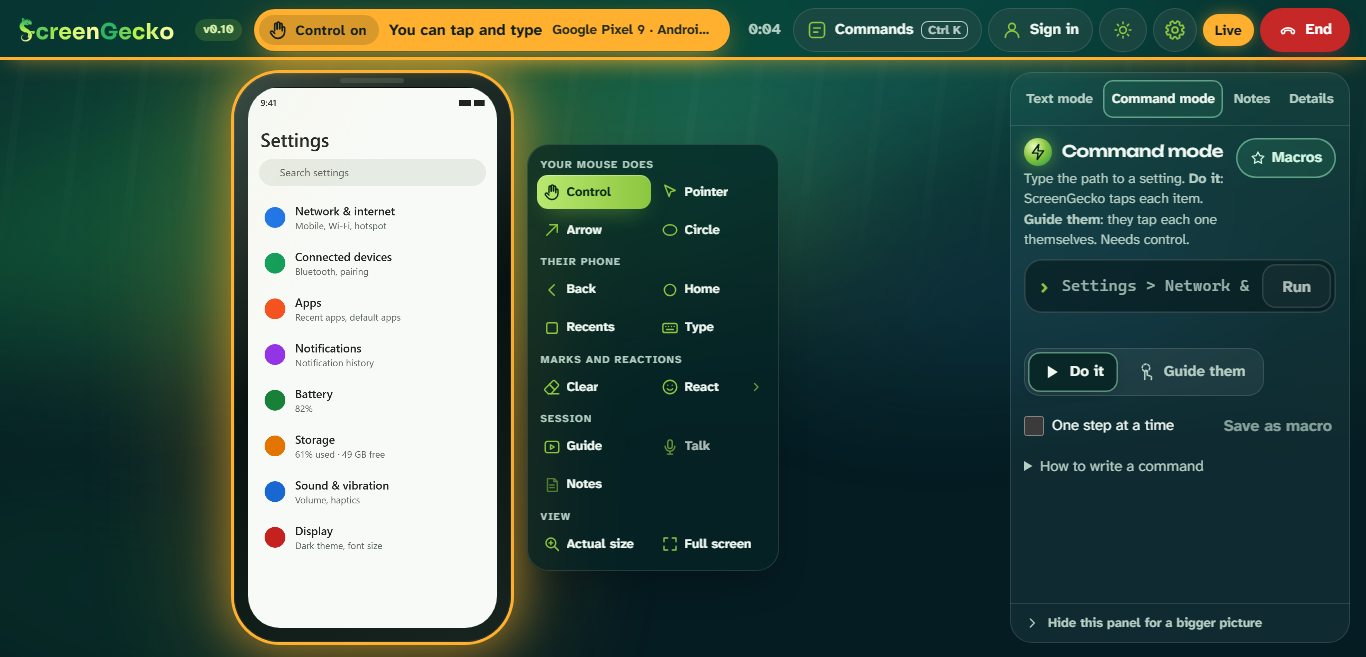
- Helper, Command mode: type a path such as Settings > Network & internet, choose Guide them, then Run.
- The bar at the top shows their turn, the step, and "Waiting for their tap". Use Show me, Skip or Stop guide.
Person being helped: you see "Your turn" and the step. Look for the green ring and tap it yourself. Stuck? Tap Show me, or Skip. Tap Stop practice to stop.
Guides they keep
- Helper: choose Guide in the dock (or press G).
- Type a title, for example "Call Dev on video", then Add a step for each step.
- Choose Send to their phone.
- Person being helped: you see "New guide from" and the title. Tap Keep it or Don't keep.
Kept guides are under Guides from your helpers on the home screen and in Settings, even with no session. Open one to read it, Share as text, or Delete it.
Quick messages
While sharing, the person being helped can tap Thank you, Wait or I'm lost. The helper sees it right away, so slow down when you see "Wait".
Still need help?
Email support@screengecko.app. Tell us which device you use and what happened. We never need your password or a code, and we will never ask for them.