

Help someone with their phone, from wherever you are.
See their screen from your browser, your computer or your own phone. On Android you can tap and type for them. On iPhone you can see the screen and talk them through it.


The person you help needs the free ScreenGecko app and a 6-digit code from you. Nothing is shared until they agree.
How it works
Three steps, about a minute. The person you help does not need an account.
-
You get a code
Sign in to ScreenGecko with your email and tap New session. You get a 6-digit code and a link to send.
-
They type it in
They open the ScreenGecko app and type the code, or tap your link. The app shows your name so they know who is asking.
-
They share, you help
They tap Share my screen and agree. You see their screen live and guide them, or on Android, tap for them once they allow it.
Your side, their side
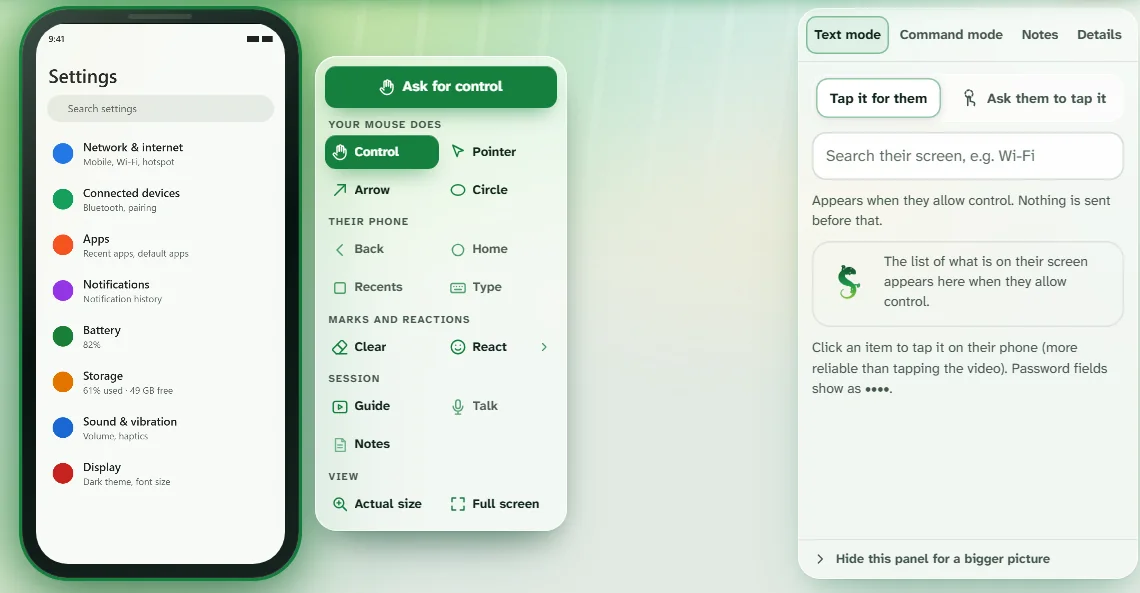
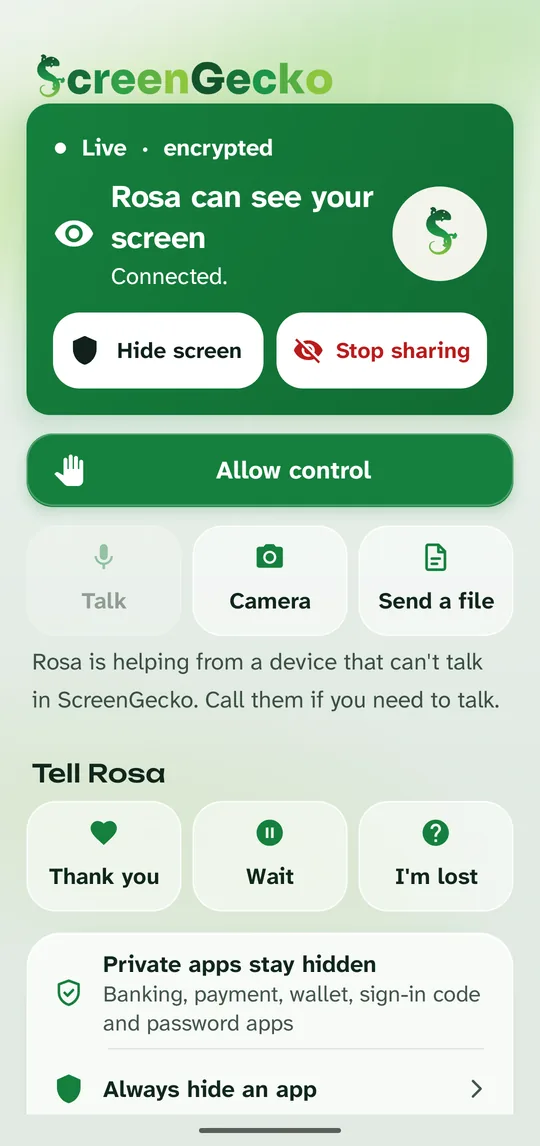
The same moment on both screens. They always know you are there, and one tap ends it.
What you can do while helping
Everything happens while they watch, and only while the session is open.
See their screen Android & iPhone
Their phone screen, live, in your browser or on your phone.
Tap and type for them Android
Once they switch control on, your clicks become taps on their phone. It switches off when the session ends.
Point and draw
Show them exactly where to tap with a pointer, an arrow or a circle. Drawings fade by themselves.
Find things by name Android
A searchable list of what is on their screen, and steps like Settings › Wi-Fi that ScreenGecko taps through for you.
See through their camera Android
For a router, a printer or a TV: they can show you their camera instead of the screen.
Phone check-up Android
Battery, storage, network and version at a glance, so you spot the usual problems quickly.
Help them learn it, so they can do it next time
ScreenGecko is made for the people you help, not just for you. They can do the steps themselves, keep the guide, and always see what is being shared.
Your turn Android
Instead of tapping for them, choose Guide them. Their phone draws a ring around the next thing to tap, with big words, and waits for their own tap. Stuck? They press Show me.
Guides they keep Android
Send a guide at the end: numbered steps in big type that stay on their phone, never in the cloud, under Guides from your helpers. They can read it again, or tap Read this guide aloud, any time, even without you.
Private apps stay private Android
They can press Hide my screen at any time. Banking and password apps hide by themselves, and you just see the gecko covering its eyes.
The gecko changes color, so everyone knows what is shared
The same color, icon and words show on their phone and on your screen. Never color alone.
- ViewingSam can see your screen
- ControlSam can tap and type
- Your turnTap Wi-Fi
- CameraSam sees your camera
- HiddenYour screen is hidden
- EndedNothing is shared
They stay in control, the whole time
Remote help is only good if it is safe. ScreenGecko is built so nothing happens without the person seeing it.
They see who is asking
Before anything is shared, the app shows the helper's name and asks them to agree.
A big Stop button
A red bar and a notification stay on screen while sharing. One tap ends it.
Control is off until they turn it on
On Android, tapping for them needs their permission every session, and it switches itself off when the session ends.
Nothing hidden, nothing recorded
There is no hidden mode and no unattended access. The screen goes straight from their phone to you and is never recorded.
Made for the people who get the call
Family and friends
Your mom can't find the Wi-Fi setting, your dad's phone is full, a friend is stuck on a pop-up. Help them in minutes without driving over.
IT techs and small shops
Help customers and staff with their phones from your desk, with codes that work once and a summary of each session you can save.
Simple prices
Prices in US dollars. Start free with 15 minutes of help a day, upgrade any time, and cancel whenever you like. The person you help never pays.
Free
$0
Free for as long as you like
What you get:
- Help someone for up to 15 minutes a day
- Control Android phones; iPhones are view-only
- Send a help link by text or email
- Keep up to 3 people
Family
$4.99/month
or $49.99 a year (save 16%)
Unlimited help minutes, plus:
- Your turn: you guide, they tap each step themselves (Android)
- Guides: step-by-step notes they keep on their phone (Android)
- Talk: speak to each other inside the session
- Privacy Shield: banking and password apps hide by themselves on Android, and Hide screen covers everything
- Keep up to 5 people
Pro
$9.99/month
or $99.99 a year (save 16%)
For IT techs and small shops: everything in Family, plus
- File transfer
- Your branding: your business name and logo on the screen they see
- Session notes and reports (PDF or email)
- Unlimited people, with groups
Get ScreenGecko
The person being helped installs the app. Helpers can use any modern browser, on a computer or a phone: open ScreenGecko in your browser.
Android
Available nowSee the screen, and with their permission, tap and type for them.
iPhone
Available nowSee the screen and guide them. Apple does not let any app tap for someone else, so iPhone help is view-only.
Windows
Available nowHelp someone from your PC, or get help with this PC. Control is a separate yes, and Stop is always on top.
Mac
Available nowHelp someone from your Mac, or share this Mac with a helper you called.
SHA-256: 31bb912e071837db790070adcdb0c304437ecb569bb7274be293627910d66123
Helpers: the web
Available nowSign in with your email and start a session. Nothing to install.
Questions
Step-by-step answers are in the Help Center.
Does the person I help need an account?
No. Only the helper signs in. The other person opens the app and types your code, or taps your link.
Can I control an iPhone?
No. Apple does not allow any app to tap or type on an iPhone for someone else. You can see the iPhone screen and talk them through it.
Is the screen recorded?
No. The picture goes from their phone to you while the session is open and is not stored. ScreenGecko keeps only a short record of each session (when it started and ended), never what was on the screen.
Can you see my phone without me knowing?
No. Every session needs the person to agree on their own phone, shows who is watching, and has a Stop button that is always on screen. There is no hidden or unattended mode.
What does a code look like, and how long does it last?
Six digits, like 482 917. A code works once and expires after 10 minutes.
Guides for helping someone
- Help your parents from far awaySee their phone screen and guide them step by step.
- See your mom's phone screenView a phone screen remotely, only when they say yes.
- Remote help for an Android phoneSee, point, guide and tap once they allow control.
- Help someone with their iPhoneSee the screen and talk them through it. View-only.
- Help an older parent with their phonePatient, step-by-step help where they stay in charge.
- Is remote screen sharing safe?ScreenGecko will never call you. How to stay safe.
Ready to help someone?
Sign in with your email and you will have a code in under a minute.