

Allow control on Android
Last updated October 13, 2026
On Android, your helper can tap, swipe and type for you, but only after you allow it. You switch it on once in Android settings. After that, you just tap Allow control in a session.
iPhone and iPad Apple does not let any app tap or type on an iPhone or iPad for someone else, so iPhone help is view only. Your helper can see your screen, point and talk you through it. See iPhone and iPad.
The first time: a one-time setup
- During a session, tap Allow control.
- ScreenGecko explains what control does and what it reads. Read it, then tap Agree and continue. Or tap No thanks, keep it view-only.
- Android's Accessibility settings open. Tap Installed apps (on some phones: Downloaded apps).
- Tap ScreenGecko remote control and switch it On.
- Tap Allow. ScreenGecko comes back by itself, and control is on.
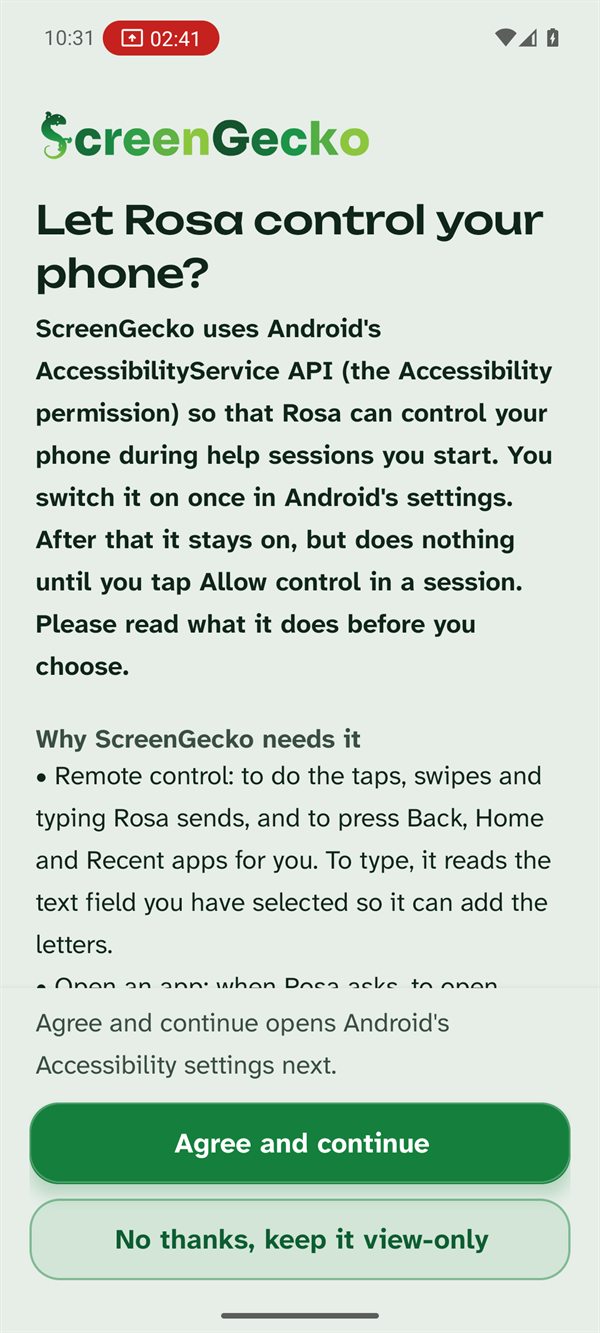
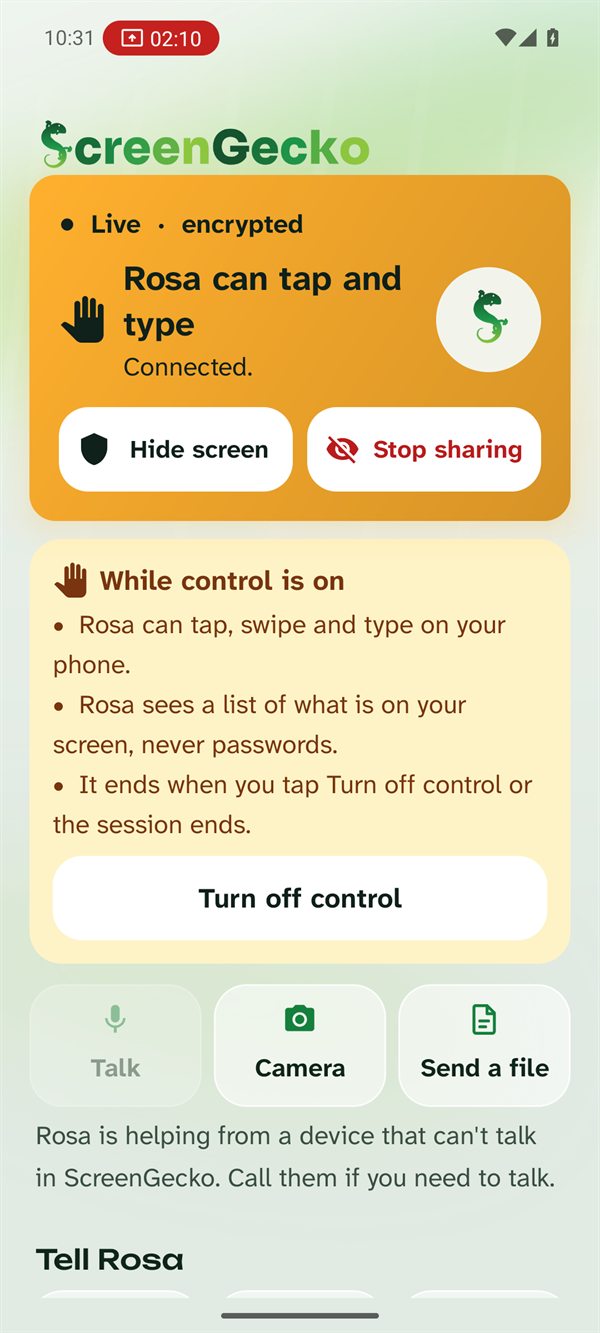
The Android setting stays on after that, but it does nothing unless you are sharing in a session you started and you tapped Allow control in that session.
Every session after that
- Tap Allow control on the sharing screen. Control turns on right away, with no trip to settings.
- Or wait for your helper to ask: you see "is asking to control your phone". Tap Allow or No thanks.
For the helper: Ask for control
- In the helper console, choose Ask for control at the top of the dock.
- Their phone shows Allow and No thanks. The button reads "Asked. Waiting for them" for a few seconds.
- When they allow it, the status turns to Control on and your mouse taps for them. Use Back, Home, Recents and Type too.
The very first time, they also need the one-time setup above, which takes about a minute. In the ScreenGecko phone apps, ask them out loud to tap Allow control.
Turn control off
- For now: tap Turn off control. Control also ends when you tap Stop sharing or the session ends. Next session, your helper has to be allowed again.
- For good: open Android Settings > Accessibility > ScreenGecko remote control and switch it off.
What control can and cannot do
- Your helper sees a list of what is on your screen so they can tap the right thing, but never passwords: password fields show as dots.
- It never opens app stores, installers or permission screens on its own.
- Control cannot turn on while you are on a phone call (Android 16), when you share only one app, or on a phone with Android's Advanced Protection turned on. ScreenGecko tells you which one it is.
Still need help?
Email support@screengecko.app. Tell us which device you use and what happened. We never need your password or a code, and we will never ask for them.