

iPhone and iPad
Last updated October 13, 2026
On iPhone and iPad, your helper can see your screen and guide you. Apple does not let any app tap or type on an iPhone for someone else, so iPhone help is view only.
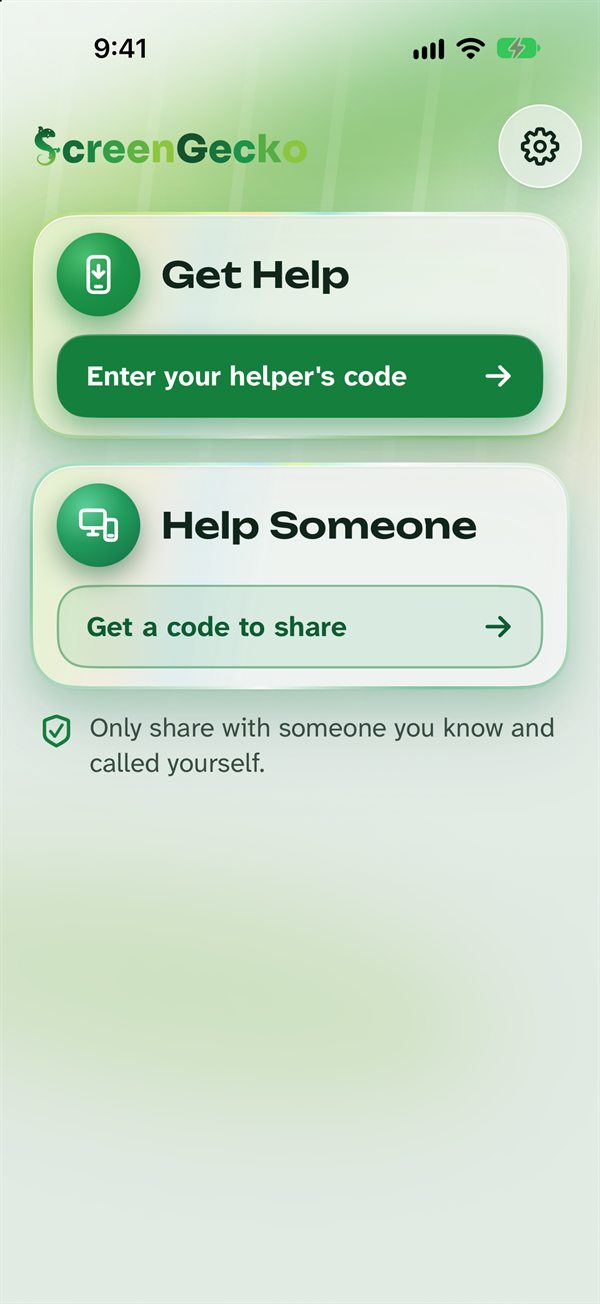
Share your iPhone or iPad screen
- Tap Enter your helper's code, type the six numbers, and tap Join. A link from your helper opens the app with the code filled in.
- Check the name. If you know them, tap Yes, share my screen.
- On One more tap, tap Start sharing my screen, then Start Broadcast. Your iPhone counts down 3, 2, 1.
- Go to the app you need help with. Your helper sees what you see and tells you where to tap.
While you share
- ScreenGecko shows View only: your helper can see, not tap.
- Tap Thank you, Wait or I'm lost to tell them something.
- Your notifications show on the shared screen too.
Stop sharing
Tap Stop sharing in ScreenGecko, then Stop sharing again to confirm. Or tap the red bar at the top of the screen, or stop it in Control Center.
Helping someone from an iPhone or iPad
- Tap Get a code to share and sign in with your email.
- On Ready to help, type your name and tap Get a code. Give them the code.
- The toolbar has Back, Home, Apps, Type, Point, File, cheers, More and End.
You can tap for someone on an Android phone once they allow control. Talk is not available from an iPhone: call them instead.
Plans bought on iPhone or iPad
Subscribe in ScreenGecko under Your plan. To change or cancel, open the iPhone Settings app, tap your name, then Subscriptions > ScreenGecko. See Plans and billing.
Still need help?
Email support@screengecko.app. Tell us which device you use and what happened. We never need your password or a code, and we will never ask for them.