

Getting help (for the person being helped)
Last updated October 13, 2026
Someone you know is going to help you with your phone or computer. You do not need an account, and you can stop at any time.
Only share with someone you know and called yourself. ScreenGecko never calls, texts or emails you out of the blue. If a stranger asked you for this, hang up. Staying safe.
1. Get the ScreenGecko app
Install ScreenGecko on the device you need help with: Android phone or tablet, iPhone or iPad, Mac or Windows PC. Android: Google Play. iPhone or iPad: the App Store. Mac: download for Mac. Windows: the Microsoft Store.
2. Type your helper's code
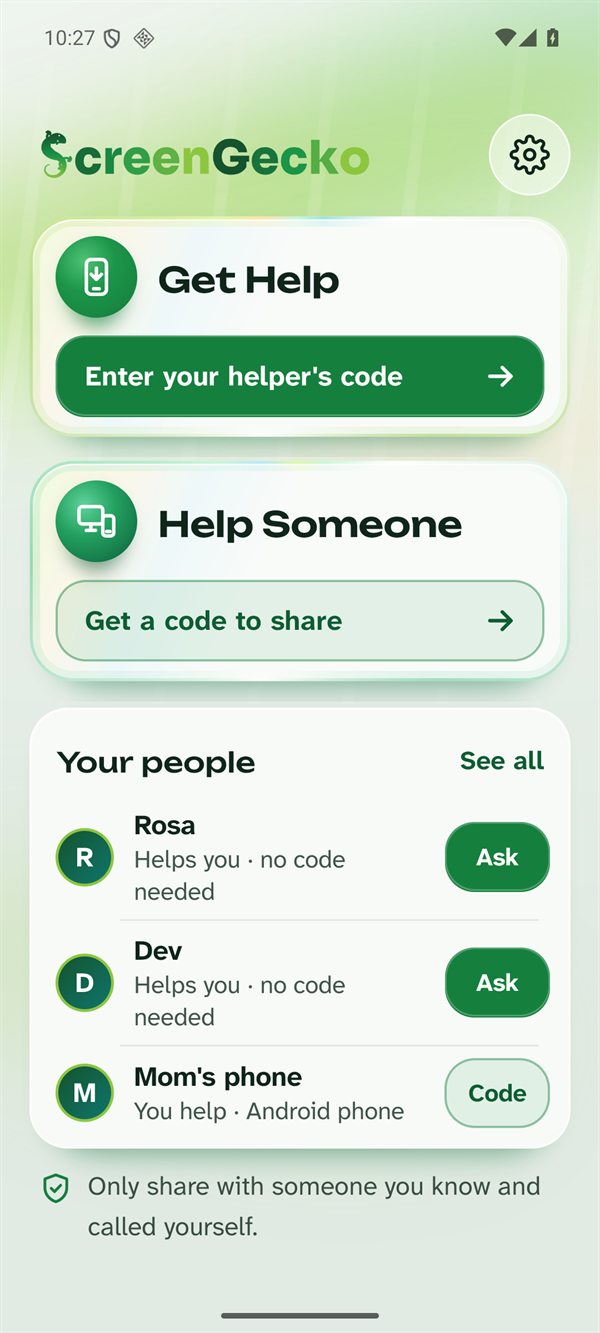
- Open ScreenGecko and tap Enter your helper's code under Get Help. On Windows, the screen is called Get Help with this PC.
- Type the six numbers your helper reads to you, then tap Join.
- Got a link or QR code instead? Open the link, or point your phone camera at the QR code. The code fills in by itself. You can also tap Paste a code or link.
3. Check the name, then share
- ScreenGecko shows who wants to see your screen. Make sure it is the person you called.
- If it is, tap the share button: Share everything on Android (then Start on Android's message), Yes, share my screen on iPhone and iPad, or Share my screen on Mac and Windows.
- If it is not, tap No thanks. You can also tap Report or Block.
On Android 14 and later you can choose Share one app instead: your helper sees only that app and can point, but cannot tap.
4. While you share
- The top of the screen says who can see it, for example "Rosa can see your screen".
- Hide screen covers your screen for a moment, for example while you type a password. See Privacy Shield and Hide screen.
- Under Tell and your helper's name, tap Thank you, Wait or I'm lost to send a quick message.
- Your helper can only look and point until you allow more. On Android you can tap Allow control to let them tap for you. See Allow control on Android.
5. Stop any time
Tap Stop sharing. The session ends for both of you, and nothing is shared after that. Nothing is recorded.
Still need help?
Email support@screengecko.app. Tell us which device you use and what happened. We never need your password or a code, and we will never ask for them.