

Help someone for the first time
Last updated October 13, 2026
You are the helper: the one who gets the call. You sign in, get a 6-digit code, and give it to the person you help. They never need an account.
1. Pick where you help from
- A computer or any browser: open screengecko.app/app. Nothing to install.
- The ScreenGecko app on Android, iPhone, iPad, Mac or Windows: tap Help Someone on the home screen.
2. Sign in with your email
- Type your email and choose Email me a code.
- Type the code from the email and choose Sign in. The first time, this also creates your helper account.
Prefer a password? Choose Use a password instead. More in Your account.
3. Get a code
- Type Your name. The other person sees it before they share anything, so use the name they know you by.
- Optional: type who you are helping, for example "Mom". Only you see it.
- Choose Get a code to share (in the phone apps: Get a code).
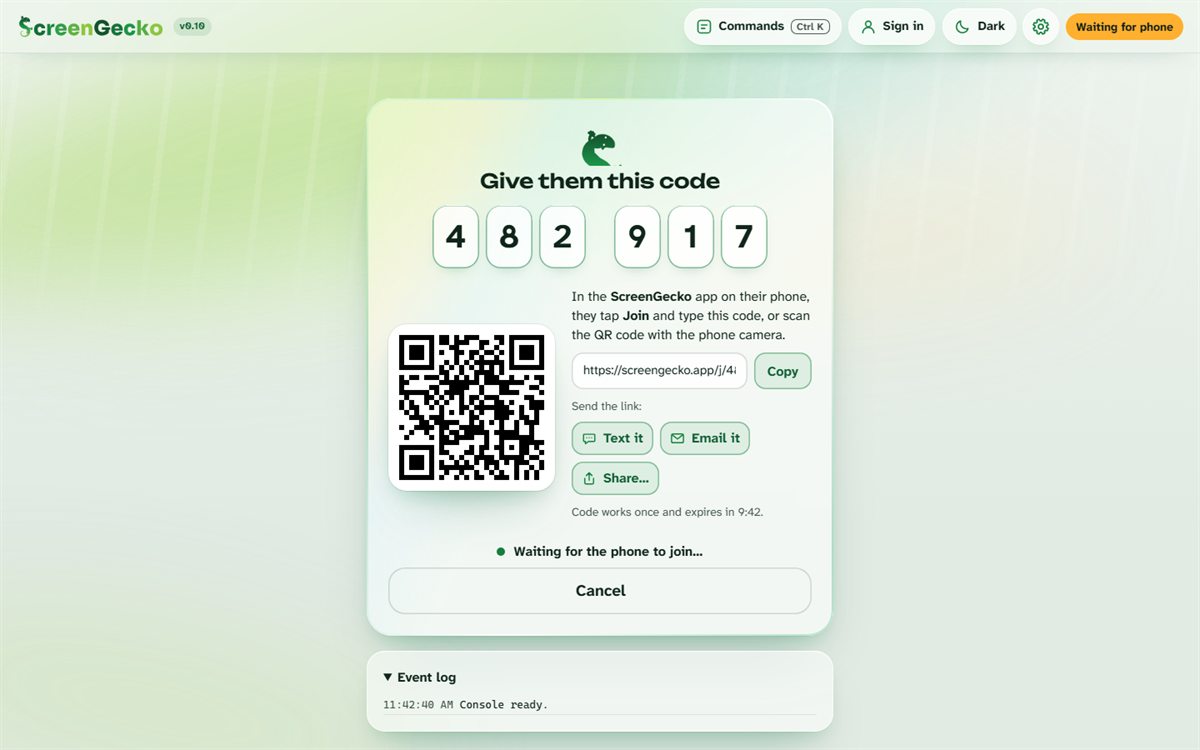
4. Give them the code or the link
- On the phone with them? Read the six numbers out loud.
- Not on a call? Choose Text it, Email it or Share to send the link (screengecko.app/j/ and the code). On Android, the link opens the app with the code already filled in.
- Sitting next to them? They can point their phone camera at the QR code.
5. Wait for them to say yes
You see Waiting for the phone to join. On their device they type the code, check your name, and choose to share. Their screen then appears for you. Walk them through it: what the other person sees.
Next time, skip the code. Save them during the session and they can ask you with one tap. See Your people.
Still need help?
Email support@screengecko.app. Tell us which device you use and what happened. We never need your password or a code, and we will never ask for them.