

Your people: Ask and Code
Last updated October 13, 2026
Save the people you help once, and next time nobody has to read out a code. They tap Ask, or you tap Code.
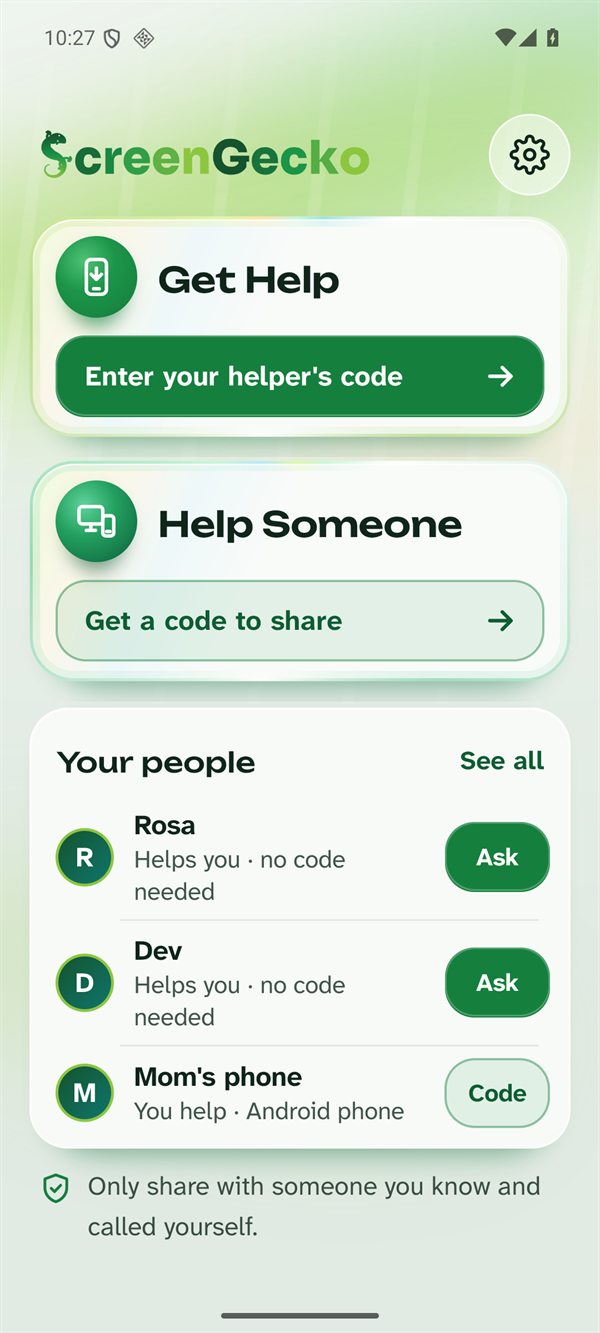
Save someone (helper)
- During a session, in the console open the Details tab and find People I help. In the phone apps, open More, then Save this person.
- Type their name, for example "Mom", and choose Save.
- Their device then offers them to save you too. When they say yes, you are in each other's lists.
Ask your helper for help (person being helped)
- On the ScreenGecko home screen, find Your people. Your helpers show "Helps you · no code needed".
- Tap Ask next to their name, then Yes, ask.
- Your helper sees "is asking for help" and chooses Help now. You still check the name and choose to share, like always.
On Android you can also add a home screen button: Settings > Add a help button.
Start with someone you saved (helper)
In the apps, tap Code next to the person in Your people to get a fresh code for them. You still give them the code, as in Help someone for the first time.
How many people you can keep
- Free: up to 3 people.
- Family: up to 5 people.
- Pro: unlimited, sorted into groups. See Pro tools.
To make room, remove someone: in the console, Settings > People I help > Remove. People you already saved are kept if your plan changes.
Remove or block a helper (person being helped)
Open Settings in ScreenGecko, go to Your helpers, and choose Forget or Block next to the name. Blocked helpers are listed under Blocked helpers, where you can unblock them.
Still need help?
Email support@screengecko.app. Tell us which device you use and what happened. We never need your password or a code, and we will never ask for them.