

Your account and deleting it
Last updated October 13, 2026
Only helpers have an account. The person being helped never signs in, and nothing about them is needed beyond the session.
Sign in
- Type your email and choose Email me a code.
- Type the code from the email and choose Sign in. No email? Check spam, then choose Send a new code.
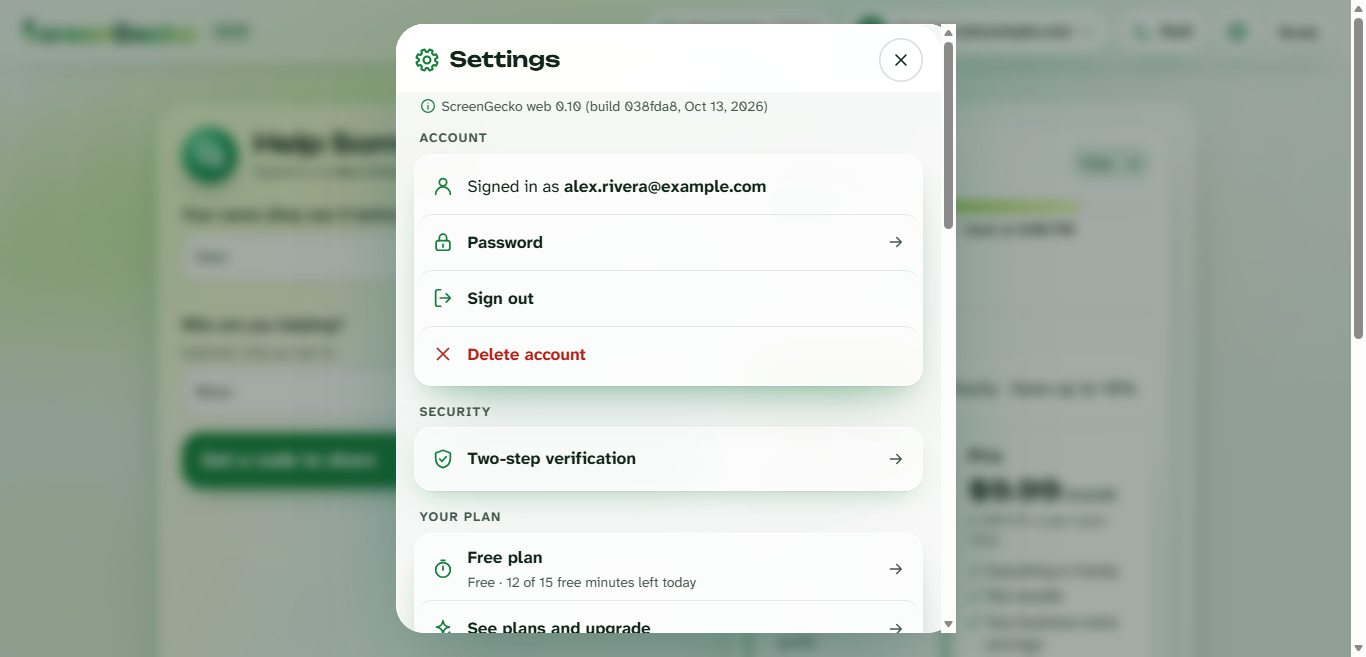
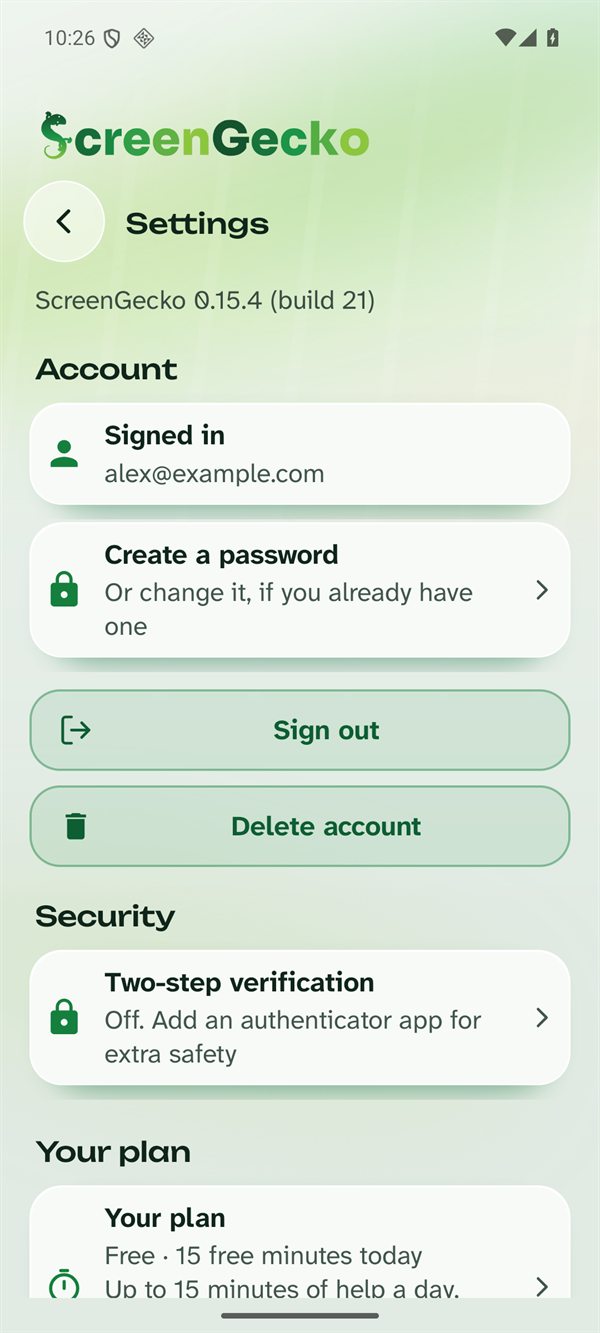
Prefer a password? Sign in once with a code, then open Settings > Create a password (or Password). After that, choose Use a password instead to sign in.
Two-step verification
For extra safety, open Settings > Security > Two-step verification and add an authenticator app. After that, ScreenGecko asks for its 6-digit code when you sign in.
Sign out
Open Settings and choose Sign out. If a session is live, ScreenGecko ends it first.
Delete your account
- Open Settings and choose Delete account. This works in the console and in the Android, iPhone, iPad and Mac apps.
- Read what is deleted: your account and sign-in, the link to your plan, saved people, session history and notification tokens.
- Type DELETE and confirm.
- A web plan bought through Stripe is canceled at once.
- App Store and Google Play subscriptions are not canceled. Cancel them in your Apple or Google settings: see Change or cancel.
- If you signed in more than a day ago, ScreenGecko asks you to sign in again first.
- You can also email us from your sign-in address and ask us to delete your account, or to see or correct your information.
For the person being helped
You have no account to delete. To remove a saved helper or the guides they sent, open Settings in ScreenGecko on that device and go to Your helpers or Guides from your helpers. Read our privacy policy for what is kept.
Still need help?
Email support@screengecko.app. Tell us which device you use and what happened. We never need your password or a code, and we will never ask for them.