

Privacy Shield and Hide screen
Last updated October 13, 2026
Some things are private, even from someone you trust. ScreenGecko hides them for you, and you can hide your whole screen with one tap.
Hide your screen
- While you share, tap Hide screen (on some screens: Hide my screen).
- Your helper sees a gray screen and cannot tap or type. Do the private part, like typing a password.
- Tap Show screen to share again.
Hide is also in the Android notification, in the menu bar on a Mac, and in the bar at the top of the screen on Mac and Windows.
Privacy Shield on Android
When you open a banking, payment, wallet, sign-in code (authenticator) or password app, ScreenGecko hides your screen by itself and tells you, for example "ScreenGecko hid your banking app". Your helper sees a gray screen until you leave that app.
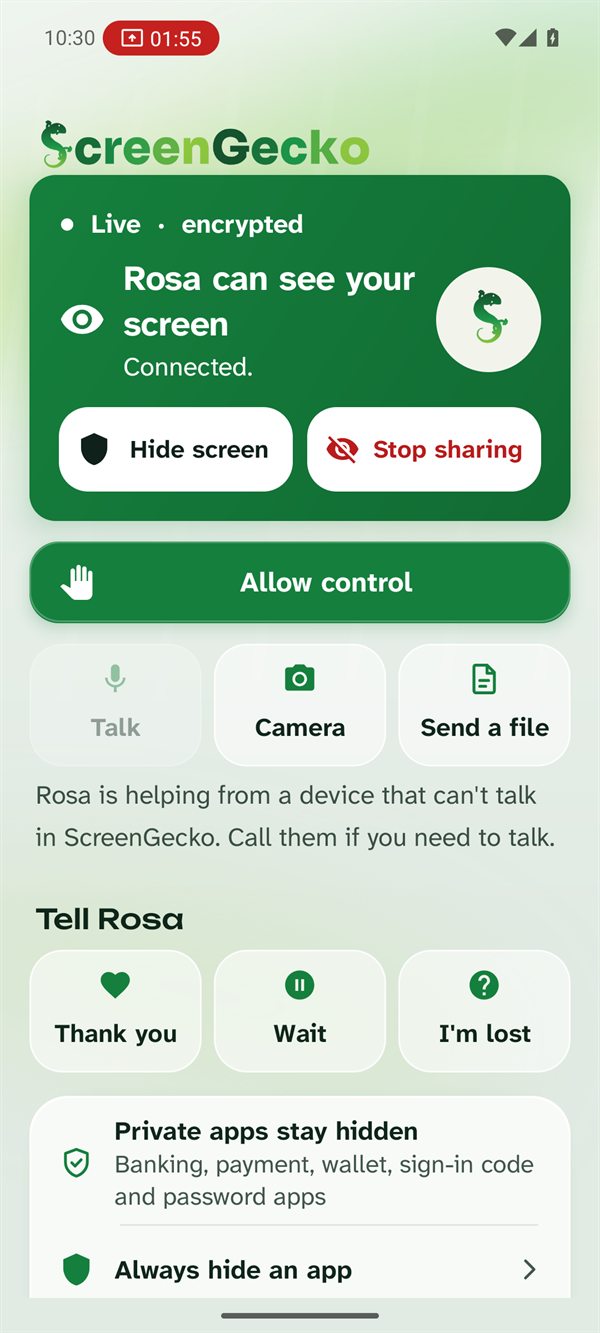
- Hide another app every time: tap Always hide an app on the sharing screen, or open Settings > Privacy Shield > Always hide these apps, tick the apps and tap Save.
- The automatic check works once ScreenGecko's control setting has been switched on in Android settings (see Allow control). It only checks which app is in front, and only while you share.
What the helper sees
The status turns to Hidden, with a short reason such as "opened a banking app. ScreenGecko hid it." Tapping, typing and text mode pause until the screen comes back. Please wait, or ask them to come back to the app you were working on.
On other devices
- iPhone and iPad: there is no Hide button. Before you open something private, tap Stop sharing (or the red bar at the top, or Control Center), then ask your helper for a new code afterward.
- Mac and Windows: use Hide my screen. Windows security screens (like the sign-in and administrator prompts) are never shared.
Still need help?
Email support@screengecko.app. Tell us which device you use and what happened. We never need your password or a code, and we will never ask for them.