

The Windows app
Last updated October 13, 2026
ScreenGecko for Windows does both jobs: get help with this PC, or help someone else from it. Get it free from the Microsoft Store.
Switch between helping and getting help
The app opens on Help Someone, which is the same helper console as screengecko.app/app. To get help instead, right-click the ScreenGecko icon in the taskbar tray and choose Get Help with this PC. From that screen, I am the helper: help someone instead switches back.
Get help with this PC
- Open Get Help with this PC and type the six numbers your helper reads to you. Choose Continue.
- Check who wants to see your screen. If you know them, choose Share my screen. If not, choose No thanks, Report or Block.
- Windows asks which screen or window to share. Pick one.
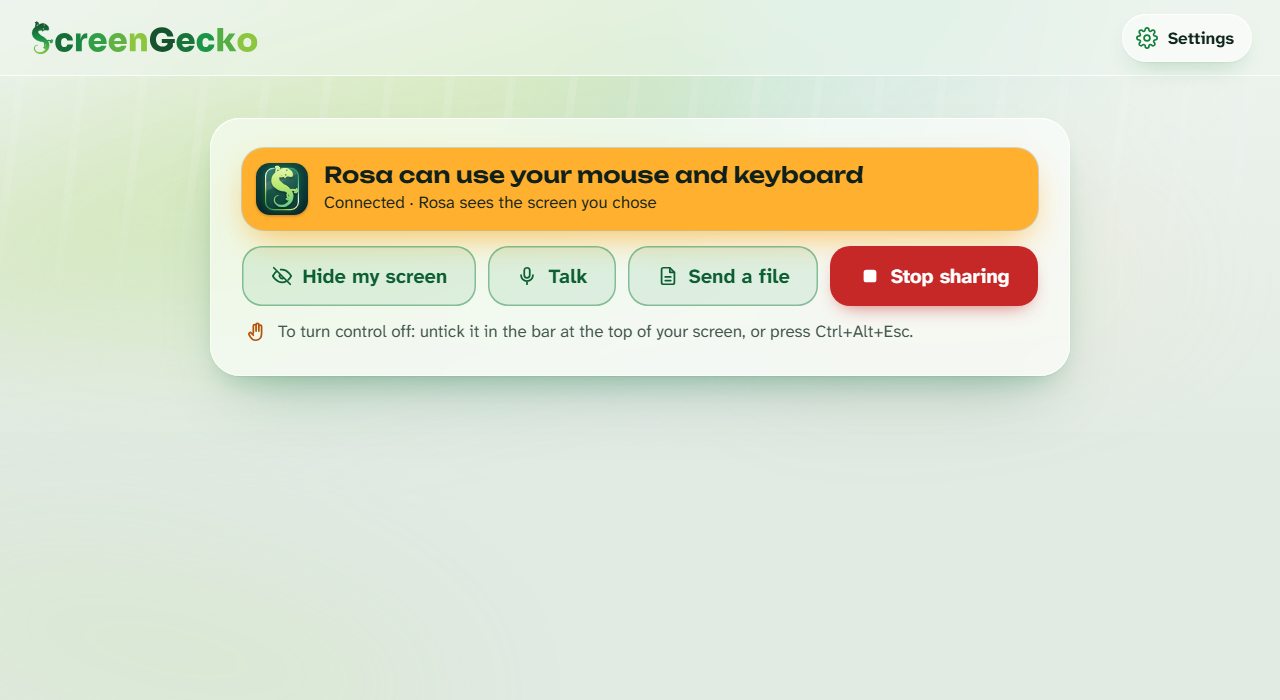
- While you share, you can Hide my screen, Talk, Send a file or Stop sharing.
Let your helper use your mouse and keyboard
- In the bar at the top of your screen, tick Let (their name) use my mouse and keyboard.
- The status turns orange and says they can use your mouse and keyboard.
- To take it back, untick it, or press Ctrl+Alt+Esc. Stop is always in that bar too.
What Windows does not allow
- Administrator prompts (UAC), Ctrl+Alt+Delete and the lock screen are never shared and cannot be controlled. The person at the PC answers those.
- Windows that run as administrator: Windows does not let ScreenGecko click or type in them. The helper is told, so they can ask you to do that part.
- Pointing, drawing and Your turn work on phones only for now.
Settings
On the Get Help screen, Settings has Appearance (Match Windows, Light, Dark), Your helpers, Blocked helpers, Email support and Report a problem. The tray menu also has Start with Windows and About ScreenGecko.
Still need help?
Email support@screengecko.app. Tell us which device you use and what happened. We never need your password or a code, and we will never ask for them.