

The Mac app
Last updated October 13, 2026
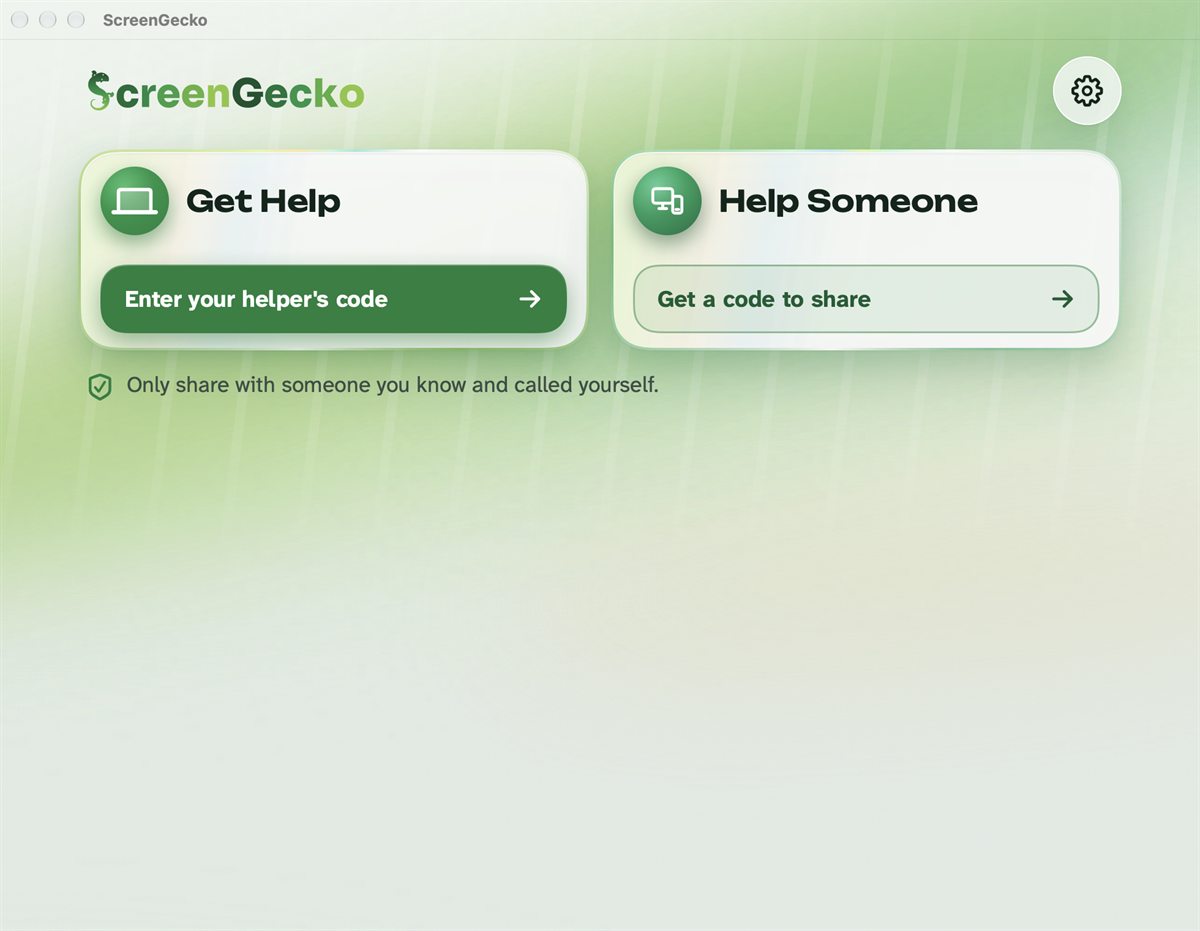
ScreenGecko for Mac lets you get help with your Mac, or help someone else from it. It needs macOS 14 or later.
1. Install it
- Download ScreenGecko for Mac.
- Open the downloaded file and drag ScreenGecko into Applications.
- Open ScreenGecko from Applications. It is signed and checked by Apple, so it opens like any other app.
2. Allow Screen Recording (to share your screen)
macOS asks for this the first time you share. ScreenGecko shows the steps:
- Click Open System Settings (or open System Settings > Privacy & Security > Screen & System Audio Recording).
- Switch ScreenGecko on. macOS may ask you to quit and reopen ScreenGecko: that is normal.
- Back in ScreenGecko, click I switched it on. If ScreenGecko reopened, ask your helper for a new code, because codes work once.
3. Allow Accessibility (only for control)
Only needed if you want your helper to use your mouse and keyboard.
- While sharing, switch on Let (their name) use my mouse and keyboard.
- The first time, click Open System Settings (or System Settings > Privacy & Security > Accessibility).
- Find ScreenGecko and switch it on. macOS may ask for your password or Touch ID.
- Come back to ScreenGecko. It notices by itself; there is nothing to restart.
Talk uses your microphone: macOS asks the first time you tap Talk. ScreenGecko never uses the camera on a Mac.
While you share
- A small bar stays on top of your screen, and never shows in the picture. It has Stop control, Hide my screen and Stop.
- The menu bar icon also has Stop sharing and Hide my screen.
- More than one display? Choose Which screen when you agree, or Share a different screen later.
- Control turns off when the session ends. macOS never allows control of the login window, FileVault unlock or password fields.
Helping from a Mac
Choose Help Someone, sign in and get a code (see Help someone for the first time). You can control Android phones, Macs and PCs once the person allows it; iPhones are view only. When you help a PC, Command and Control are swapped for you, so shortcuts work as you expect.
Still need help?
Email support@screengecko.app. Tell us which device you use and what happened. We never need your password or a code, and we will never ask for them.